Start with the exact model name printed on your device or its packaging. Connection support can vary by model, region, permissions, and app version, so the device list in your installed version of Glucose is the current source of truth.
Find the exact device in Glucose
Open Settings, choose Connect Bluetooth Meter, and tap the + button. Match the complete model name—not only the manufacturer. Selecting a meter elsewhere in your profile does not confirm that it supports direct Bluetooth transfer.
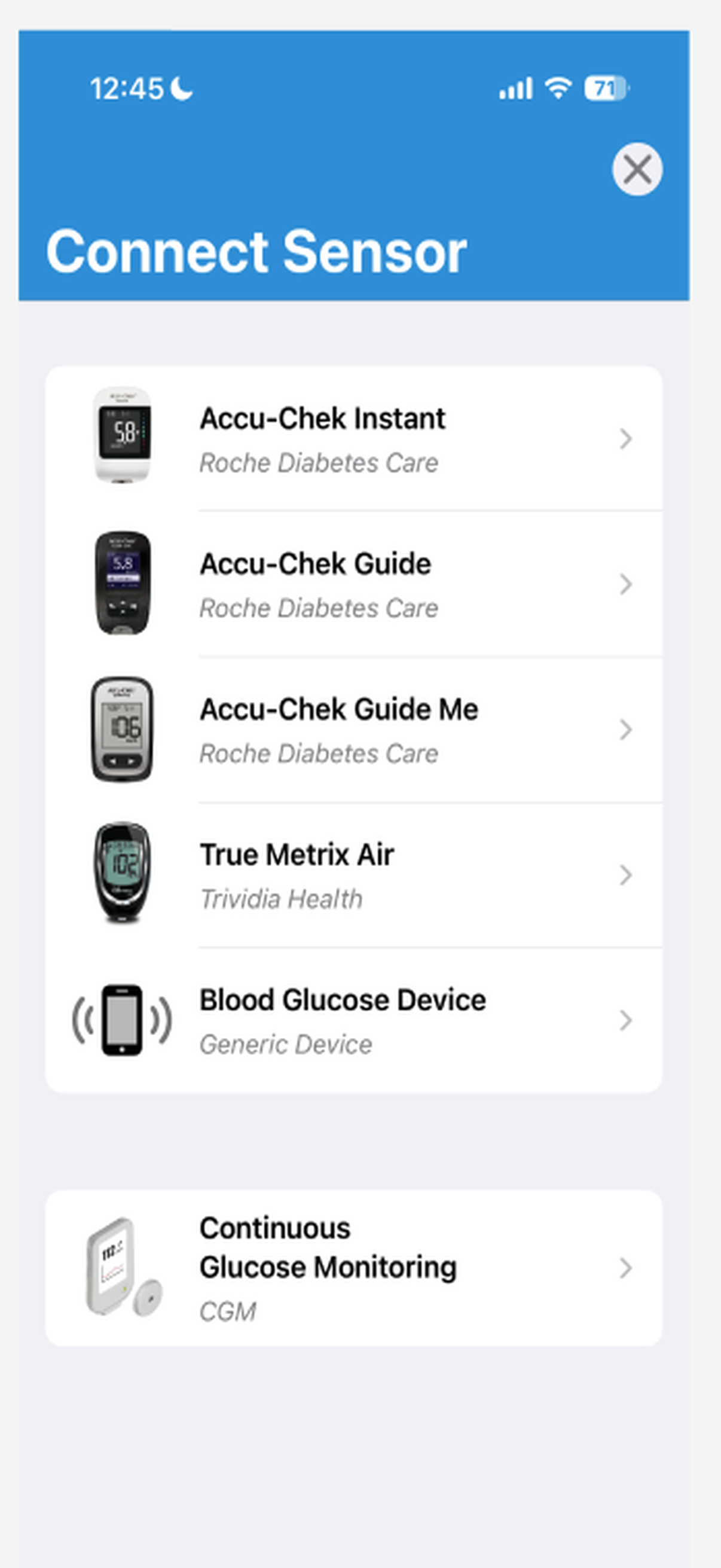
The Connect Sensor list is the place to verify direct connection support. Available models can change, so check the list in your installed version. Identify how the reading should arrive
A direct Bluetooth connection, an Apple Health permission, and manual entry are different workflows. If the exact model appears in Connect Bluetooth Meter, follow that direct setup. If it does not, direct Bluetooth support is not confirmed; review the Apple Health options available in your app or continue with manual logging.
Prepare both devices
Before pairing, update Glucose, turn on Bluetooth, and allow Bluetooth access for Glucose in iOS Settings. Charge the meter or receiver, keep it close to the iPhone, and follow the manufacturer’s instructions to enter pairing or transfer mode.
- Have the exact model name available.
- Keep the manufacturer’s companion app installed if its instructions require it.
- Disconnect the device from another phone if the manufacturer limits simultaneous connections.
Complete the in-app pairing steps
Choose the device and complete every instruction shown by Glucose. Do not leave the setup screen until pairing finishes. For a CGM, keep Glucose open during initial pairing and any sensor warm-up described by the app or manufacturer.
Confirm one reading from end to end
Transfer one recent reading and open History. Confirm that the value, unit, date, and time match the source device. Then check that a second transfer does not create an unexpected duplicate.
- The connected device should remain visible in Glucose settings.
- The reading should appear in History with a sensible timestamp.
- mg/dL or mmol/L should match the unit used by your meter and care team.
Reconnect before you reset
If syncing stops later, first confirm Bluetooth permission, battery level, distance, and the device’s transfer mode. Use a reconnect or re-pair option when Glucose provides one. Reset or remove the connection only after those checks, because you may need to repeat the full setup.
Send support enough detail to reproduce it
If the problem continues, choose Send Debug Diagnostics in Settings when available. Contact support with the generated file, exact device model, iPhone model, iOS version, Glucose version, and the last step that worked.
- Say whether the device was missing, failed to pair, or paired without transferring.
- Include any message shown by Glucose.
- Do not include passwords, Apple ID credentials, or payment information.
Troubleshooting
Match the symptom to the next check
Start with the row that best describes what you see. These checks avoid unnecessary resets and give support a clearer starting point.
- My exact model is not listed
- Direct Bluetooth support is not confirmed. Double-check the complete model name, update Glucose, and review the current device list again. Use the request-device option or contact support rather than choosing a similar-looking model.
- The model is listed, but pairing never finishes
- Confirm Bluetooth permission, battery level, distance, and the manufacturer’s pairing mode. Close another phone connection if the hardware only supports one. Restart pairing from the in-app guide.
- Pairing succeeds, but no reading appears
- Repeat the device’s transfer step, then check History for the matching time and unit. Review Apple Health permissions only if Apple Health is part of your chosen workflow.
- A CGM says warming up or disconnected
- Keep Glucose open during the initial connection and follow the sensor manufacturer’s warm-up instructions. Try reconnect or re-pair before removing or resetting the CGM.
- A reading is duplicated or looks wrong
- Compare the value, unit, and timestamp with the source device. Do not make a treatment decision from a questionable transfer. Record the details and contact support before repeatedly importing or resetting.